Brown Dining Tracker
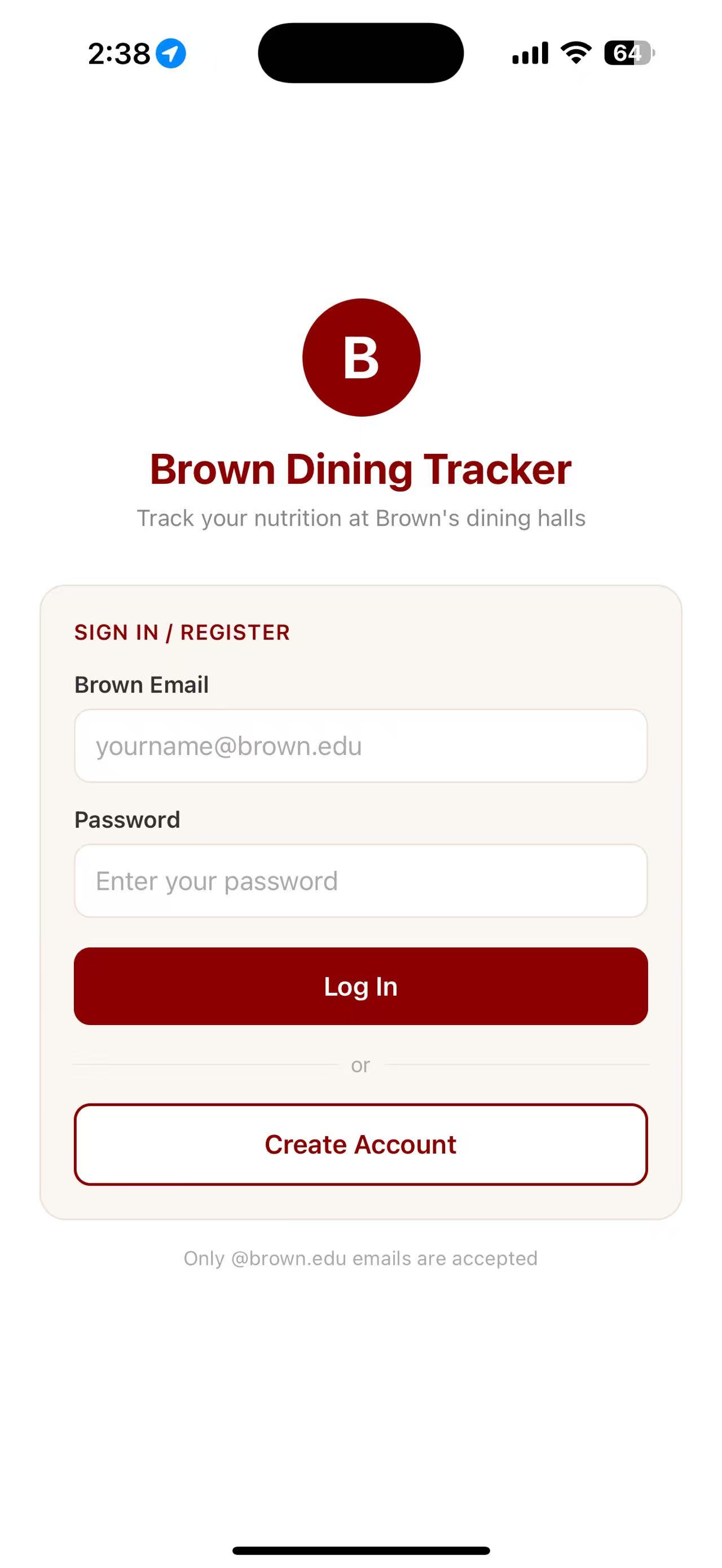
The Brown Dining Tracker is a full-stack mobile/web application I designed solely to serve the Brown University community. This app covers an unexplored field that has been previously overlooked by the current fitness apps in the market. It allows students to have a more convenvient experience when it comes to tracking their nutrition intake in a university setting, where students are able to access the most up-to-date dining menu and nutrition facts sources directly from the official Brown Dining service API. Students can also log their meals, set personal nutrition goals, and visualize their daily and monthly intake through charts. With this comprehensive menu, students are able to plan their meals and avoid any allgergens prior of actually visiting the dining locations.
← Back to ProjectsFeature Walkthrough
Home
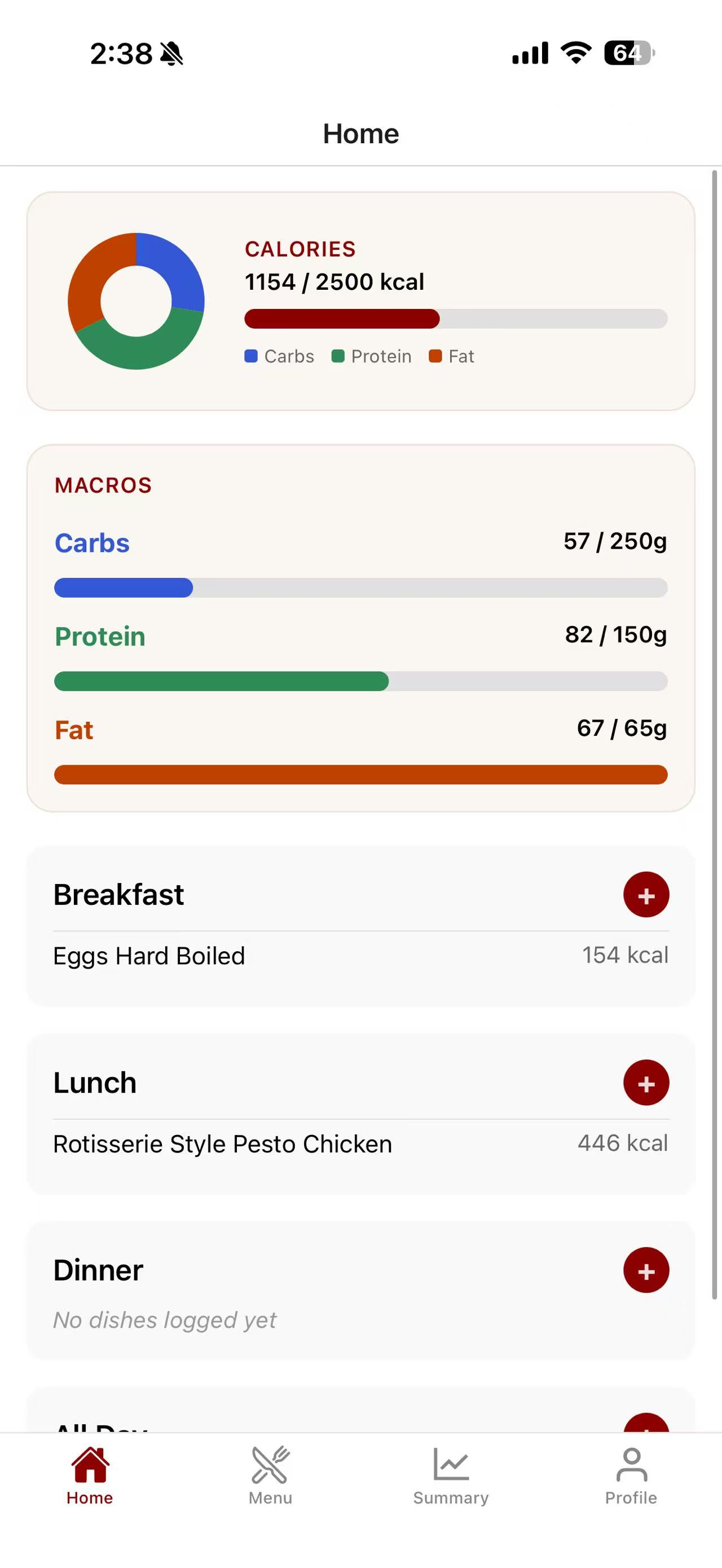
The home page provides a comprehensive summary of the user's daily nutrition intake and dining activities. The top section of the page is a visualized pie chart that allows the user to quickly understand the relative proportions of the three main nutrients (carbohydrates, proteins, and fats) they have consumed today.
The middle section is where the three progress bars are located, which provide a visual representation of the user's progress towards their daily nutrition goals. The progress bars are color coded to add a more visualized experience for the user, with blue indicating Carbohydrates, green indicating Proteins, and red indicating Fats.
The bottom section of the home page is where the user can view their recent dining activities. This section provides a quick overview of the user's recent meals, including which dishes they have consumed, what meal of the day it was, and how much calories each dish contains. The boxes are fully interactive, allowing the user to click on each dish to view more detailed nutrition information, similar to the nutrition chart that is on the back of the food packages in supermarkets. Users are also able to freely modify the contents within each box, adding or removing dishes that they have consumed or misclicked.
Menu
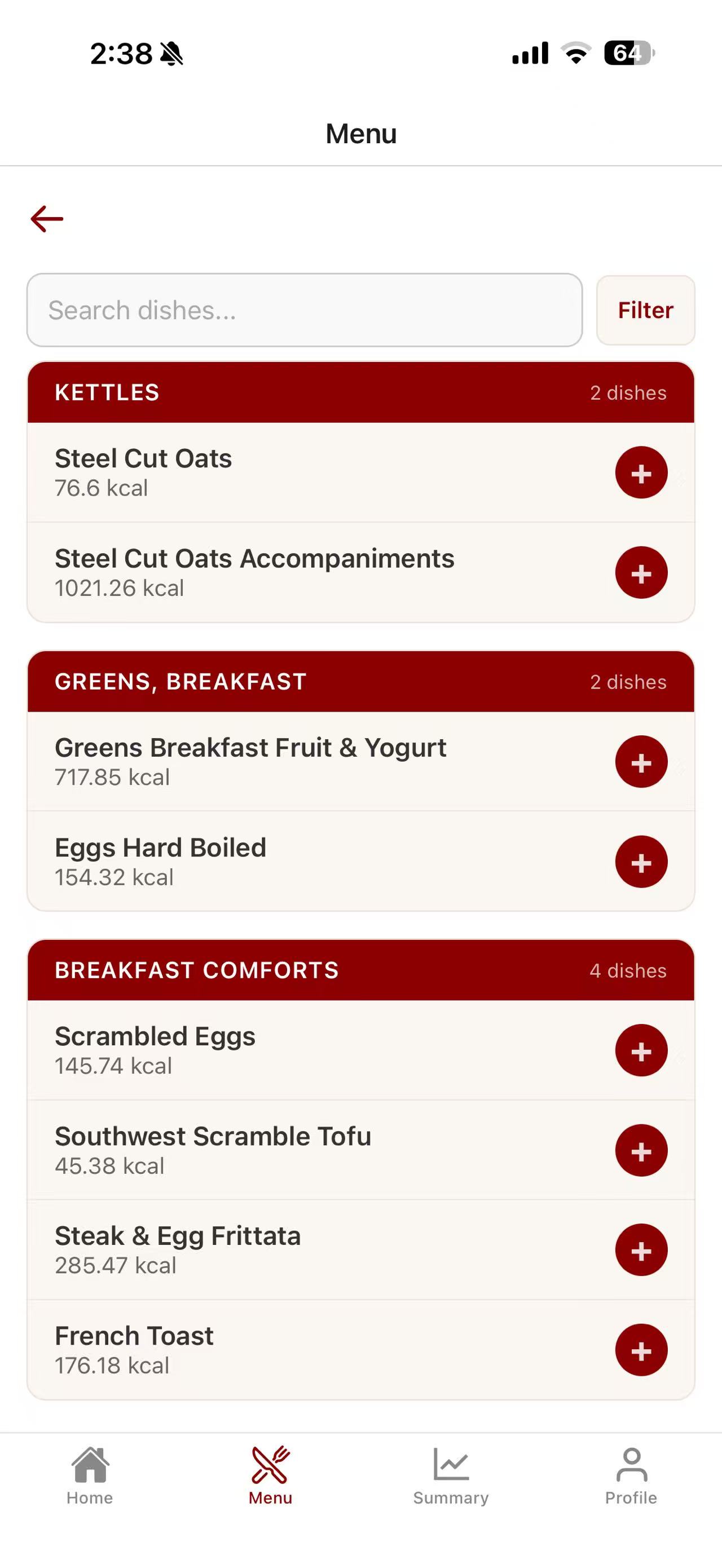
The menu page is seperated into four sections. First, user is provided with a list of available dining halls who atleast have one meal available for the day. I made the design choice of adding a filter to the locations instead of displaying all halls to avoid confusion, which I have learned from my own experience with the official univerity BrownU app.
After the user have selected a dining hall, a list of available meals will be displayed for that location will be displayed on the second section. The user will then be directed to the third section, where a comprehensive list of dishes, categorized by their station (e.g. Grill, Salad, etc.) will be displayed. The current list only includes a simple calorie count for each dish. However, the user can click on each dish card to obtain a more detailed nutrition chart, which includes the amount of carbohydrates, proteins, fats, sugar, and other macronutrients. To add a dish to their daily intake, simply click on the "Plus" button on the dish card, or "Add to Intake" in the nutrient chart page. The charts and progress bars on the home page will then be updated accordingly.
Summary
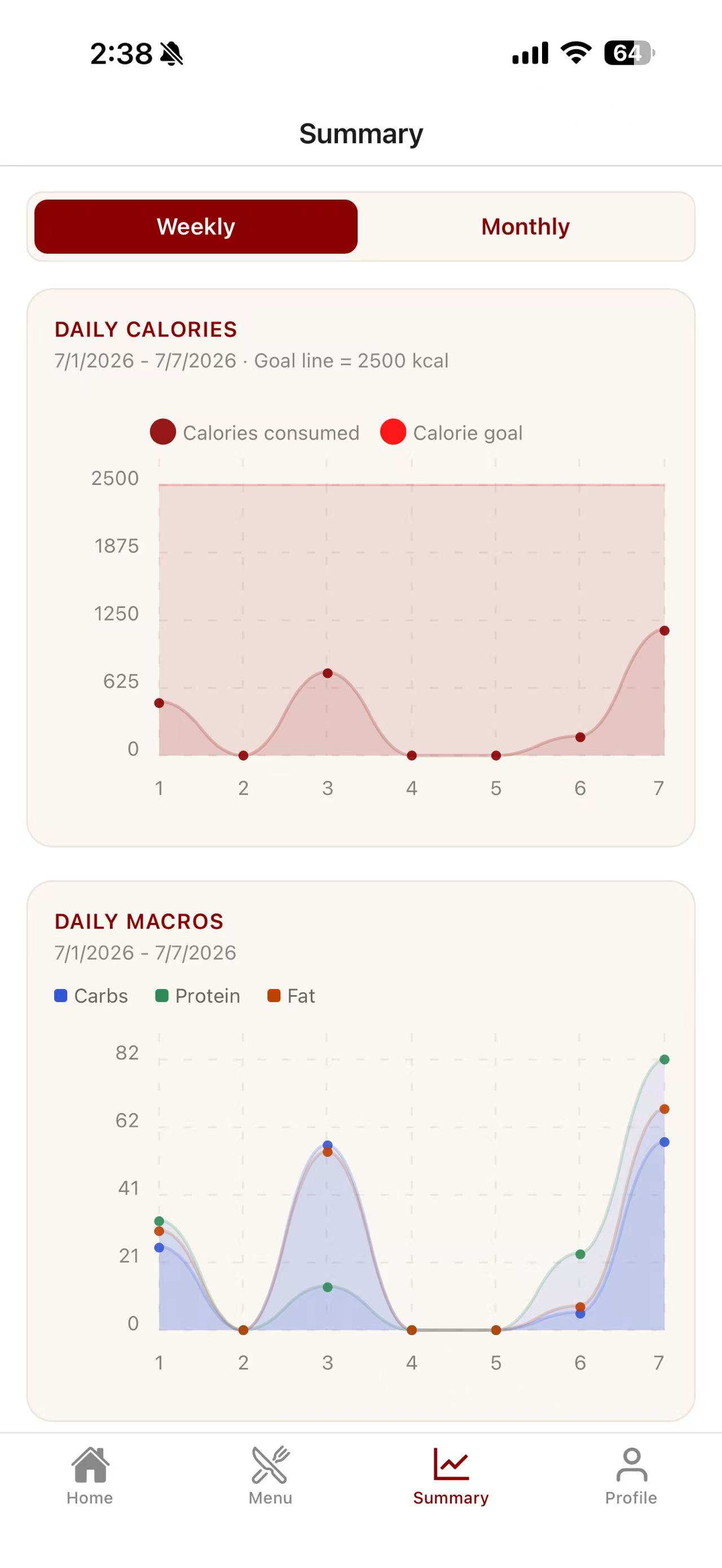
The summary page provides a visualized overview of the user's overall nutrition intake over an extended period of time. The user is able to select whether to display a weekly chart or a monthly chart. The top chart displays the user's calorie intake over the selected time with a horizontal red line symbolizing the calorie limit they have set for themselves. The bottom chart displays the user's macronutrient intake over the selected time, with the three main nutrients (carbohydrates, proteins, and fats) color coded in the same blue/green/orange style shown in the home page. This page is designed to help the user understand their overall performance during the time and make adjustments to their diet accordingly.
User
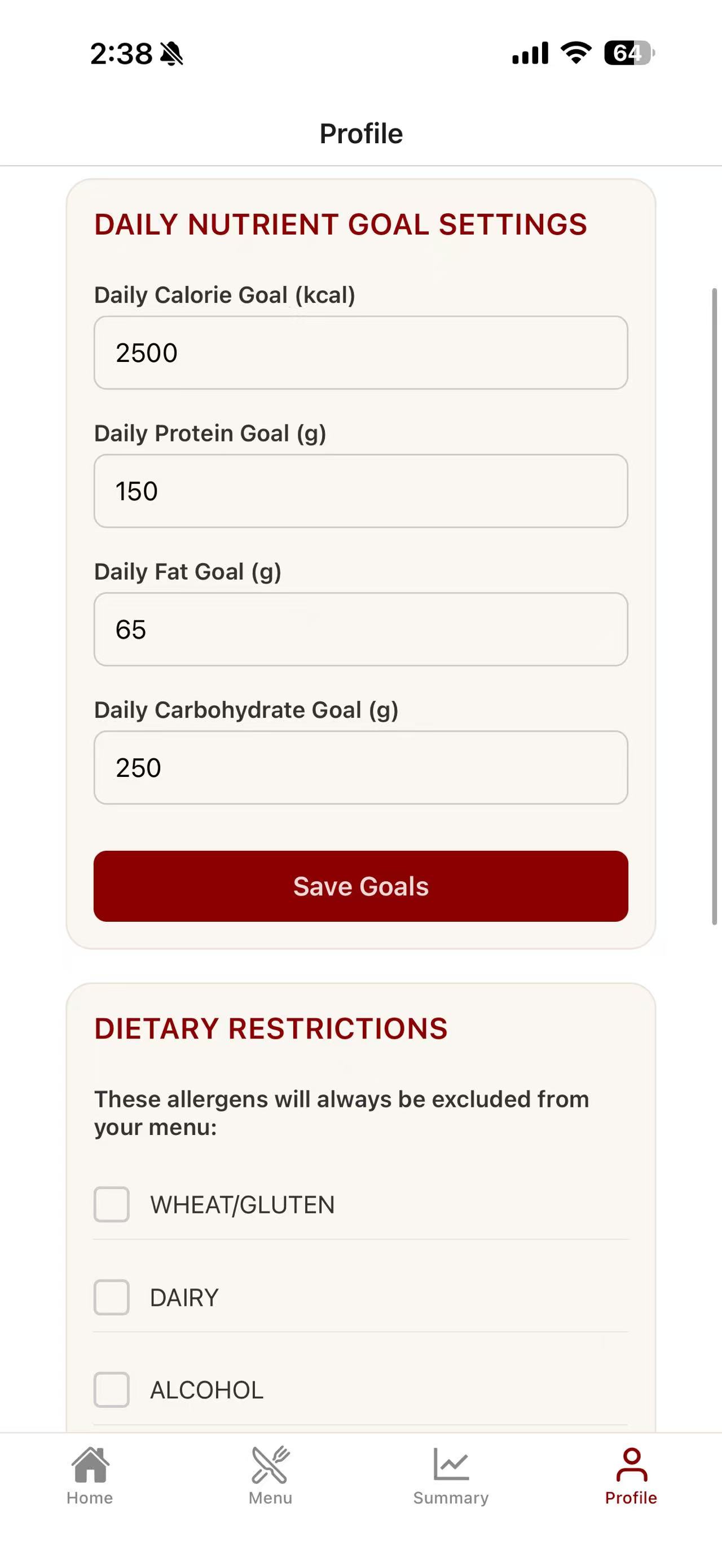
The final page of this app is the user profile page, where the user can view and modify their personal information. On the top section of the page is where user can see the email they used to register for the account, which is not shown in this picture for privacy reasons. The middle section is where the user can modify their nutrition goals, which were set to the default values of 2000 calories, 300g carbohydrates, 50g proteins, and 70g fats when the user first register. A notification will pop up when user first create their account to remind them of this configuration, and they are free to modify the values at any time. The bottom section is where the user can add their dietary restrictions, which will be used to permanently filter out any dishes in the menu that contain the allergens they have specified. If the user wish to only add filter temporarily, they can do so in the menu page by clicking on the "Filter" button on the top right corner of the page.